
Important Points
Usage Precautions
- What happens when the PC is in standby or in sleep state.
Printer information collection is not executed when the PC on which a DS Agent is installed is in standby or in sleep state at the timing of the collection set schedule. The collection starts when the PC returns from the standby or sleep state.
* During standby and sleep state, the service is stopped. Operation when the PC is shut down (power off).
Printer information collection is not performed when the PC on which a DS Agent is installed is shut down. In this case, it will be executed at the next scheduled collection time.About reconfiguring a DS Agent when using a substitute printer.
If the IP address does not change.
No need to reconfigure the DS Agent.If the IP address changes.
It is necessary to change the printer to be managed by the DS Agent.
Click [Edit] in [Services] tab - [Printer] tab - [Parameter settings] to display the "Edit printer list". Do the change on the "Edit Printer List" screen.If the serial number changes.
No DS Agent configuration changes are required. (However, make sure the IP address has not changed).
Please contact the Smart Charge Center if the serial number changes.When the printer is replaced.
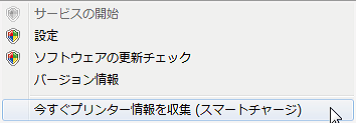
Before and after replacing the printer, run [Collect Printer Information Now (Smart Charge)] in the DS Agent to collect the latest print information before and after the replacement.
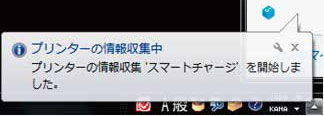
An information gathering balloon is displayed.
- A confirmation of the collection results is displayed.

A balloon indicating the end of the information collection is displayed.
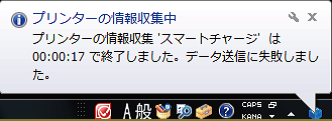
If the transmission fails, a balloon like the one on the right is displayed. In this case, check the settings.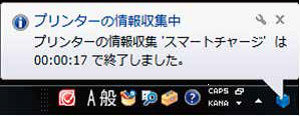
FAQ
No. | Question | Answer |
|---|---|---|
1 | Is it possible to register IP addresses of different segments in the DS Agent? | Yes, it is possible.
|
2 | Is it possible to register IP addresses of different printers in the DS Agent? | Multiple units can be registered. (Evaluated up to maximum 500 units registered) |
3 | Are environments where the printer is configured with DHCP or IPv6 supported? | No, both DS Agent and ES Agent are not supported in an IPv6 environment. However, the ES Agent does support DHCP. |
4 | Is it okay to print while the DS Agent is collecting information (scheduled time)? | Yes, there is no problem with printing while information is being collected. |
5 | Can the DS Agent monitor and send a notification when approaching or reaching the base print count on the Smart Charge plan? | No, it is not possible. |
6 | Is it okay to install a DS Agent on multiple PCs? | Yes, no problem. Collection timing and contents may vary depending on the collection time, but since the smart charge system is linked with the contract serial number, there is no problem.
|
7 | Does the PC where the DS Agent is installed need to be on 24/7? | No, it does not have to be a on all the time every day. |
8 | If the printer is off at the information collection time (time set in the schedule), is any information collected? | The DS Agent will work and collect information, but because the printer is off, it will send the data as “unconnected” information. |
9 | Can the DS Agent be accessed externally? | No, it is not possible. |
10 | If an error occurs when running a downloaded DS Agent installer. | You may be running the exe file while it is still in the downloaded zip file. |
11 | What to do if the access is controlled by a security software? Please consider the exception registration file. | Try registering the DS Agent as exception software and check again. |
12 | If the printer's IP address is changed, should the DS Agent settings be changed as well? | Yes, it is necessary. |
13 | If the DS Agent icon is not visible. | Check the setting screen on the following path. |
14 | If the DSA icon remains gray when the PC starts and does not get activated.(It is possible to start manually.) |
|
15 | If multiple "Collect printer information now" messages are displayed when right-clicking the DSA icon on the taskbar. | The IP address may have been registered incorrectly in the printer list. Right-click the DS Agent icon, select > [Settings] > [Services] tab and delete unnecessary registrations in [Service Settings]. |
16 | How to delete an IP address registered in the printer list of the DS Agent? | Procedure to delete an IP address registered in the printer list of the DS Agent.
* To delete several items at once, you can select and delete multiple items by clicking them while holding down the [ctrl] key or [Shift] key. |
17 | If the DS Agent does not collect printer information. | (The number of copies and the remaining amount of consumables are not uploaded to the Server.)
(As a result of collecting information now, "Failed" will be displayed in a popup on the taskbar. Information cannot be uploaded to the DS Server. The Web service connection test fails. )
|
18 | Is it possible to automatically read the data when the PC on which the DS Agent is installed and the printer are connected with a USB cable? | There are models that can be used as DS Agent products, but they are not compatible with the Smart Charge system. |
19 | Does the PC with the DS Agent installed need to be logged in? | No, no need to login. |
20 | How to confirm that the monitoring information has been successfully sent? | If both below points 1. and 2. are behaving as described, the monitoring information has been sent normally.
|
21 | Does the DS Agent collect personal information? | No, the DS Agent does not collect personally identifiable information. |
22 | Is it possible to send information from multiple network-connected printers or multifunction devices via one remote terminal? | No, it is not possible. |
23 | Is it possible to connect multiple printers or MFPs to a remote terminal via a USB hub? | No, it is not possible. |
24 | Is it possible to connect a network cable to the LAN port of the remote terminal and use it? | No, the LAN port of the remote terminal cannot be used. |
25 | Can the remote terminal be disconnected, then connect the printer to a PC, and print? | There are no restrictions that would prohibit printing in such case, but there is a risk of forgetting to reconnect to the remote terminal, so this usage is not included in the support. |
26 | Can the remote terminal be accessed externally? | No, it is not possible. |
27 | Is it possible to change the settings of the remote terminal? | No, it is not possible. |
28 | Is it possible to check the operation information of the remote terminal? | If all three LEDs are lit, it is working properly. |
29 | What do the LEDs on the remote terminal mean? | If all three LEDs are lit, it is working properly. |
30 | What are the functions and roles of the remote terminals? | The remote terminal plays the role of relaying data such as monitoring data, which the ES Agent normally sends via a LAN/WiFi, to a dedicated mobile phone network. |
31 | Does the remote terminal collect personal information? | No, the remote terminal does not collect personal information. |
32 | What mobile phone network is the remote terminal using? | For security reasons, we cannot provide information about the mobile phone network used by the remote terminal. |
33 | Is it possible to use the remote terminal and the network of printers and MFPs at the same time? | Since the remote terminal is connected via USB, it does not affect the network settings of printers and MFPs, so it can be used together. |
34 | Is a printer or MFP network required when using a remote terminal? | No, since the remote terminal is connected via USB, it is not dependent of the network settings of the printers and MFPs. |
35 | Will the remote terminal run on a USB bus power? | No, it will not work. An AC adapter connection is required. |
36 | Can I restore the printer or MFP to its factory default state? | Yes, it is not a problem. |
37 | Can I use DS Agent, ES Agent, and remote terminals together? | No, it is not possible. |