
Upgrading the DEVICE STATUS AGENT
There are three ways to upgrade the agent. Each way preserves the settings.
- Upgrade from the "Software Update Check" menu of the Device Status Agent already installed.
- Over-write the current version with a new version of the Device Status Agent.
- Install from the display of a new version notification.
Upgrade from the "Software Update Check" menu of the Device Status Agent already installed.
Right-click the Device Status Agent icon in the task tray (notification area) to display the menu and select [Software Update Check].
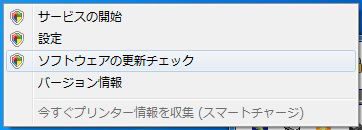
"Updating Device Status Agent" is displayed.
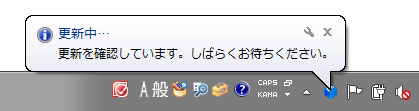
Next, refer to Installing the DEVICE STATUS AGENT
 Note / 補足 Note / 補足 |
|
Over-write the current version with a new version of the Device Status Agent.
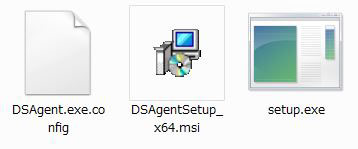
Prepare a new Device Status Agent.
Double-click [setup.exe] on the PC where the Device Status Agent is installed to start the installation.
Next, refer to Installing the DEVICE STATUS AGENT
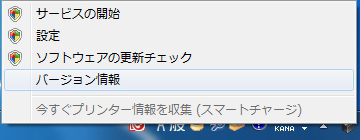
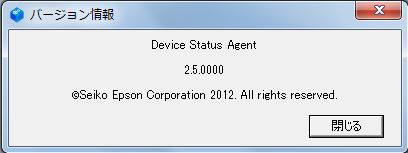
Confirm the version of the Device Status Agent after the installation is complete.
Right-click the Device Status Agent icon in the task tray (notification area) to display the menu and select [Version Information].
Install from the display of a new version notification.
If a newer version of the DS Agent is available at the set collection schedule, a new version notification screen will be displayed.
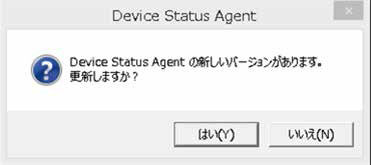
Select [Yes]. The setup wizard will start.
Next, refer to
If "No" is selected, the update will be canceled and will be displayed again at the next scheduled collection.