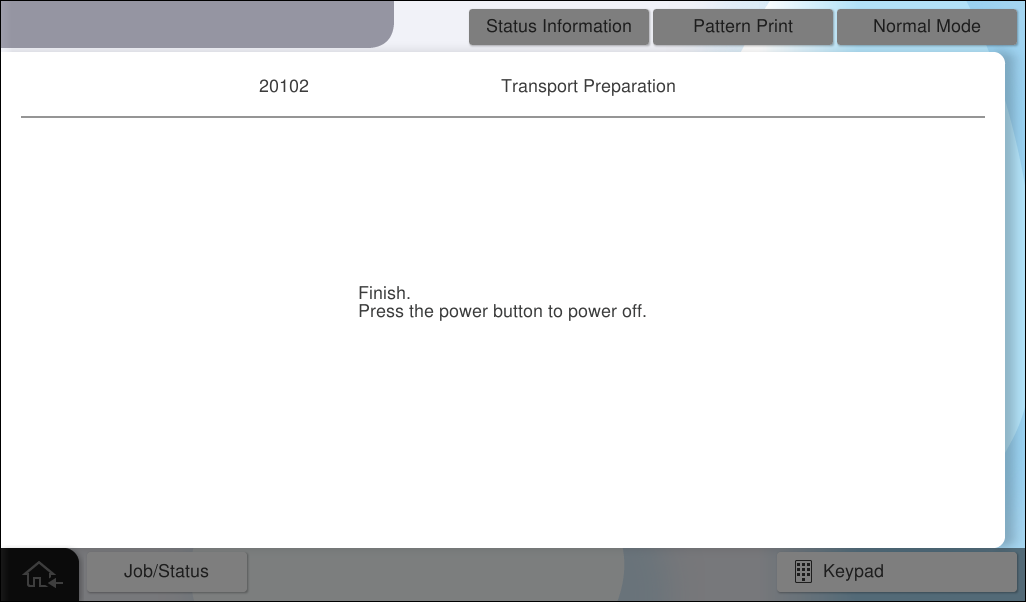
20102 Transport Preparation
Overview : In order to transport the ink filled product main unit, the necessary processing is performed sequentially.
 important / 重要 important / 重要 |
|
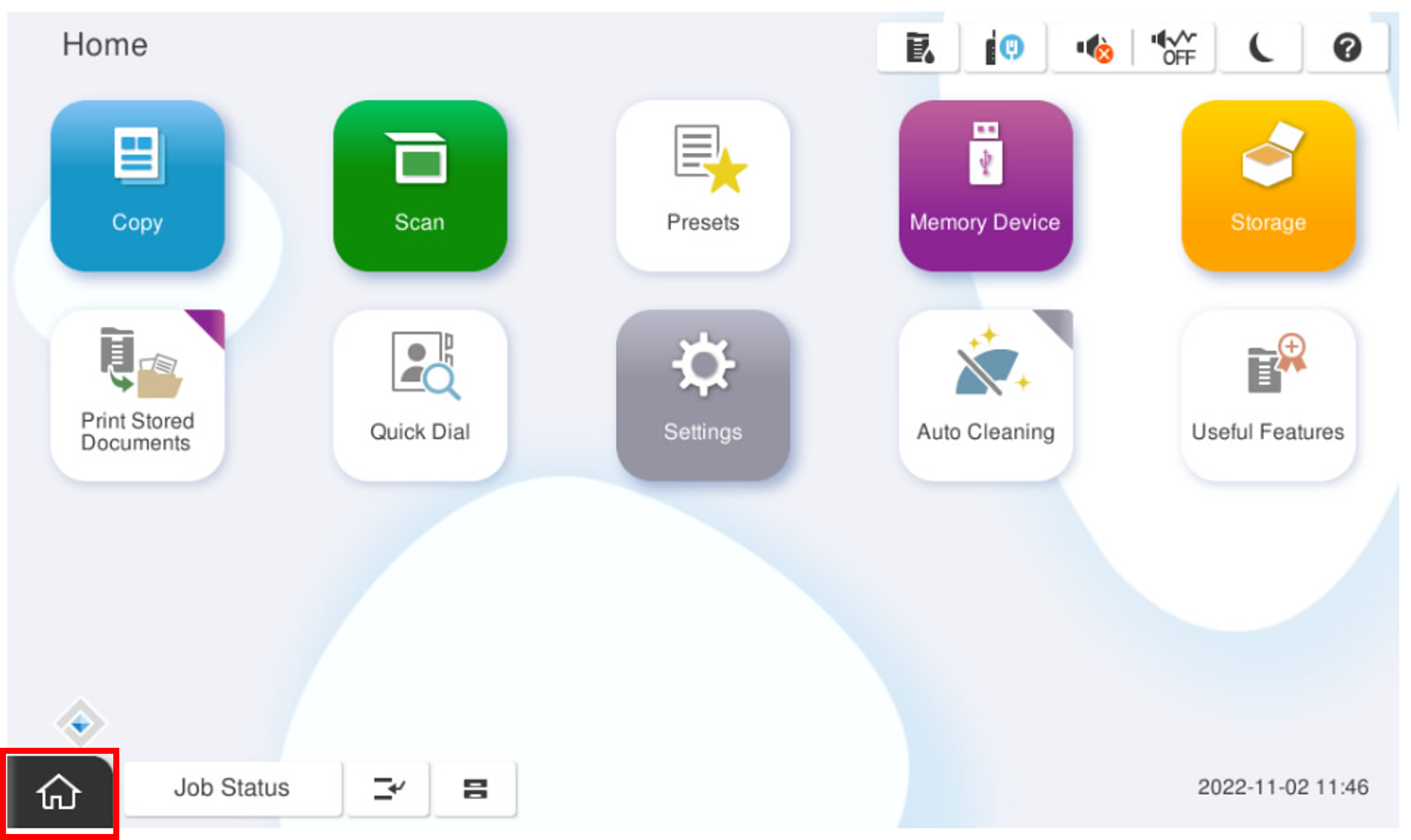
- Start the installation mode.
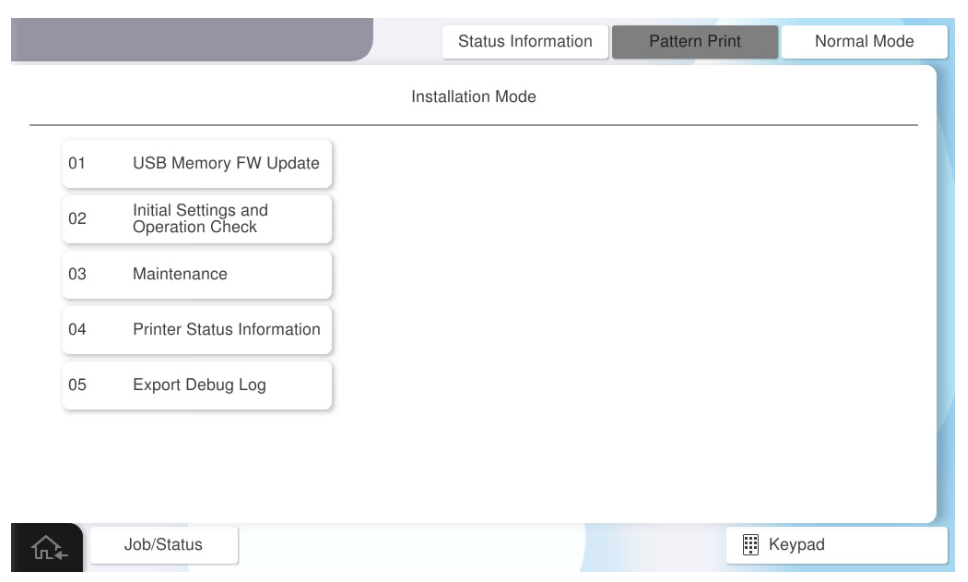
- Select [02 Initial Settings and Operation Check].
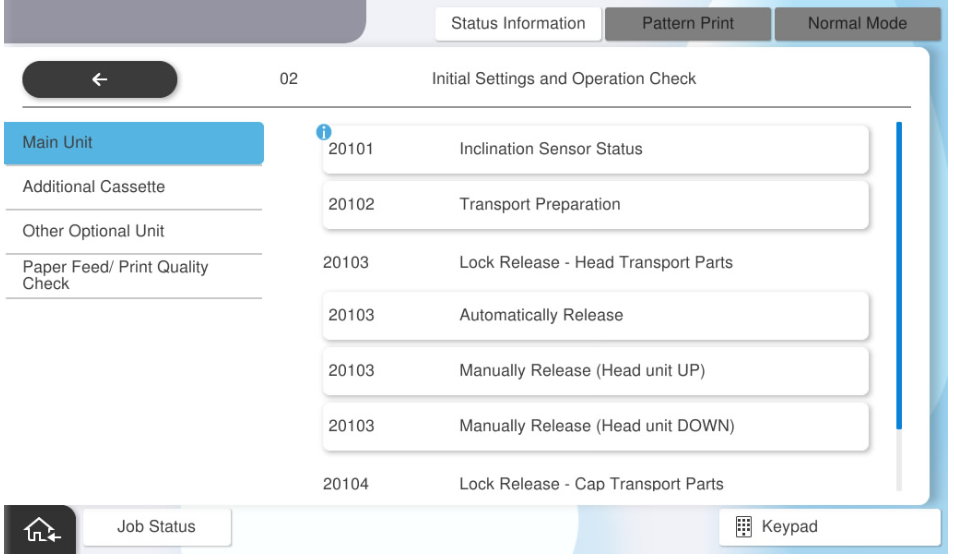
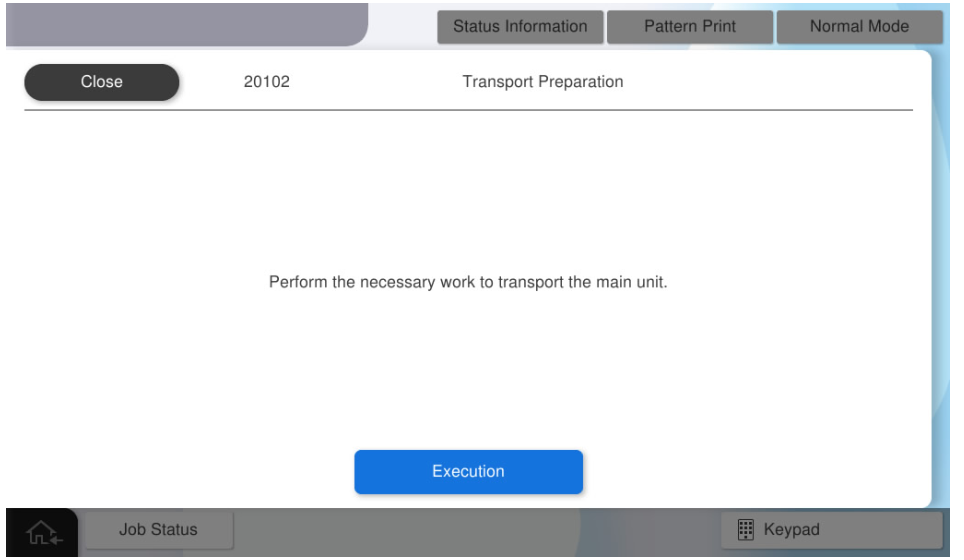
- Select [20102 Transport Preparation]
- Select [Execution].
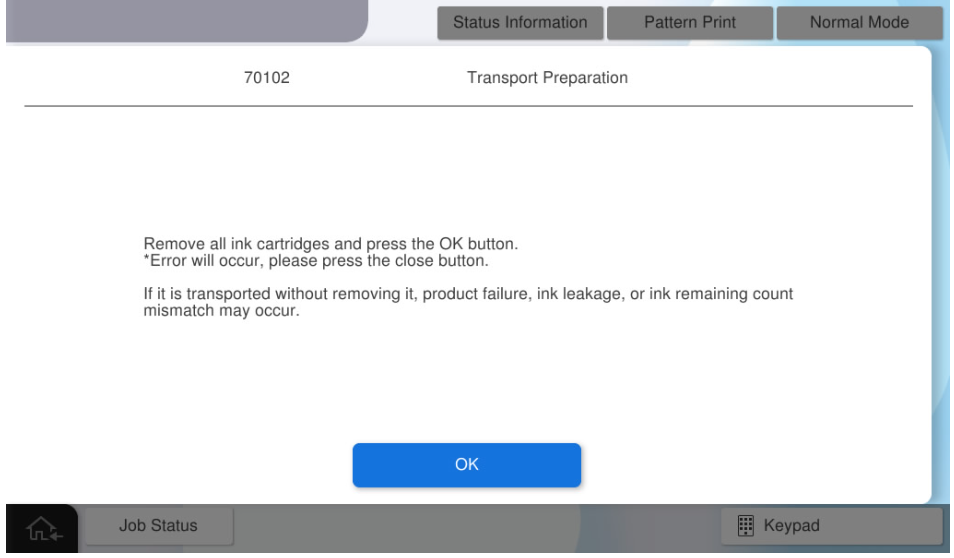
Select [OK].

When the following screen is displayed, open the front cover and remove all ink cartridges from the product.
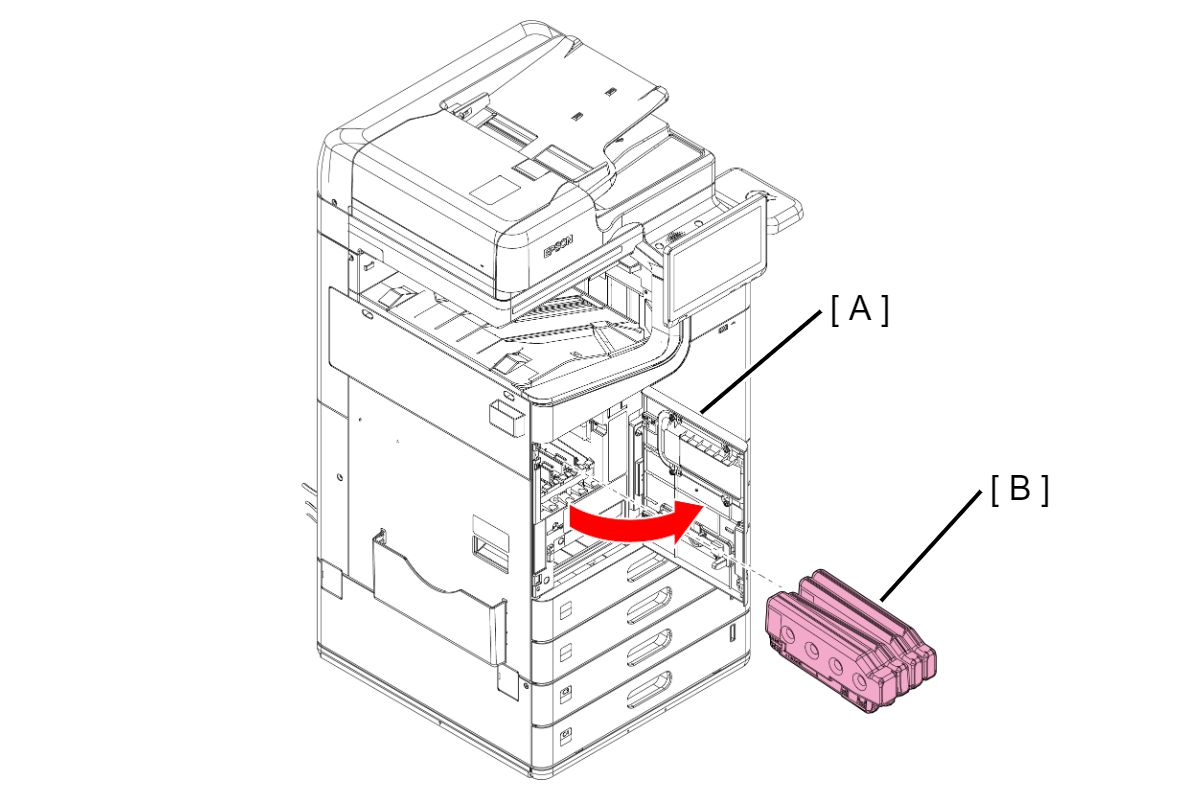
- Open the front cover (A) and remove the ink cartridge (B).
 Caution / 注意
Immediately attach the ink supply port cap (A) to the removed ink cartridge.
If the ink supply port cap is not attached, ink remaining in the supply port may drip. (Ink Cartridge )
After that, when the front cover is closed, maintenance error occurs because the ink cartridge is not installed, but the close button is pressed to close the error display.
Select [OK] when done.
- When the following screen is displayed, turn off the power of the main unit.

Attachment of transport protecting parts and simple curing (Protecting the products to avoid damages while transporting) are performed, and pre-transport preparations are complete.
 Note / 補足
- This setting is automatically canceled when the power is turned on (air valve opens). If the power is turned on by mistake even though transportation has not been completed after executing this menu, it is necessary to execute this menu again.
- After transportation is completed, take the following measures.
- Install the ink cartridge before turning on the power.
- Start the service support mode, print the printing quality check pattern, and check the printing quality. (Check Pattern Print)
- If a printing defect occurs, perform head cleaning (Head Cleaning) from the service support mode.
If color mixing occurs: Execute CL2.
- Other printing failures (nozzle missing or flight deflection) occur
After transportation is completed, before turning on the power, be sure to remove the transport protecting parts and simple curing. (Protecting the products to avoid damages while transporting)
Also, install the ink cartridge.When you turn on the power, the following screen will be displayed, select [Execute].
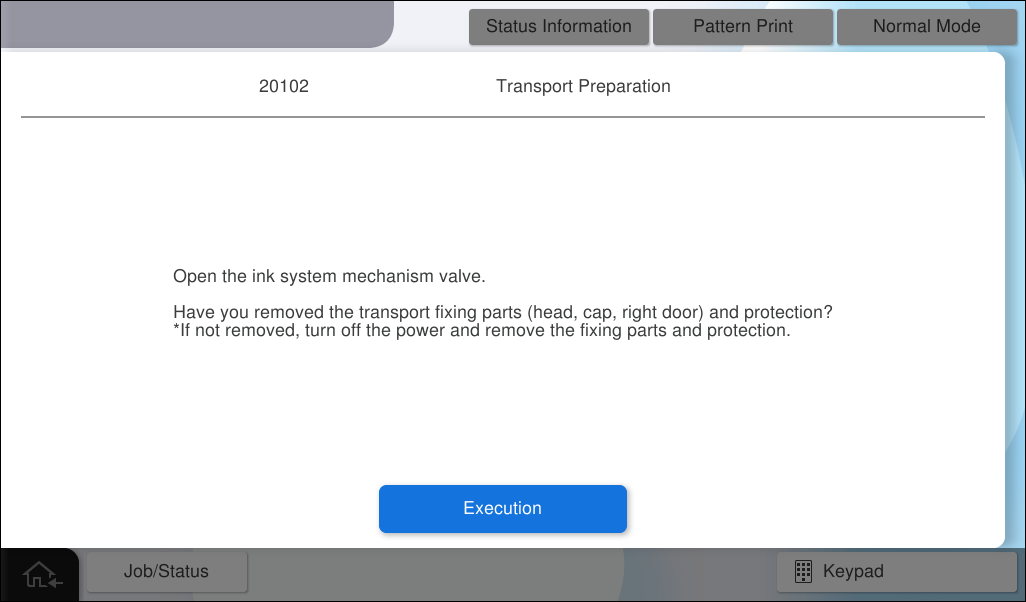
- A message is displayed to confirm the transport protecting paerts/covering has been removed.
Select [Yes] if you are removing transport protecting paerts/covering.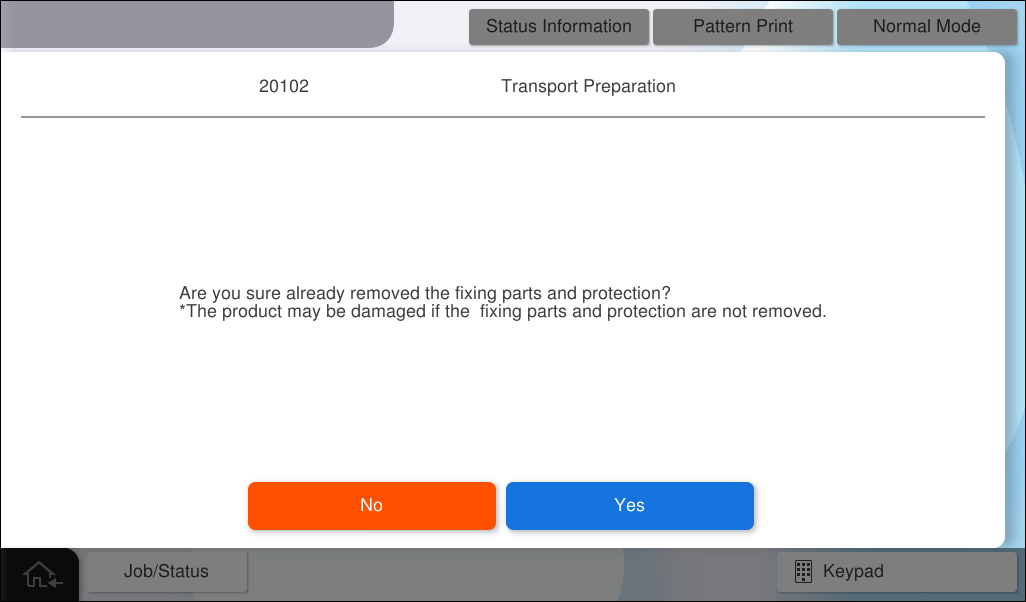
 Check Point / チェックポイント
- If you forget to remove the transport protecting parts, turn off the power of the main unit and remove the transport parts.
- Until [Yes] button is pressed, the control is such that the mechanical movement is not executed.
Also, this screen is forcibly displayed.
Start the air valve (automatic).
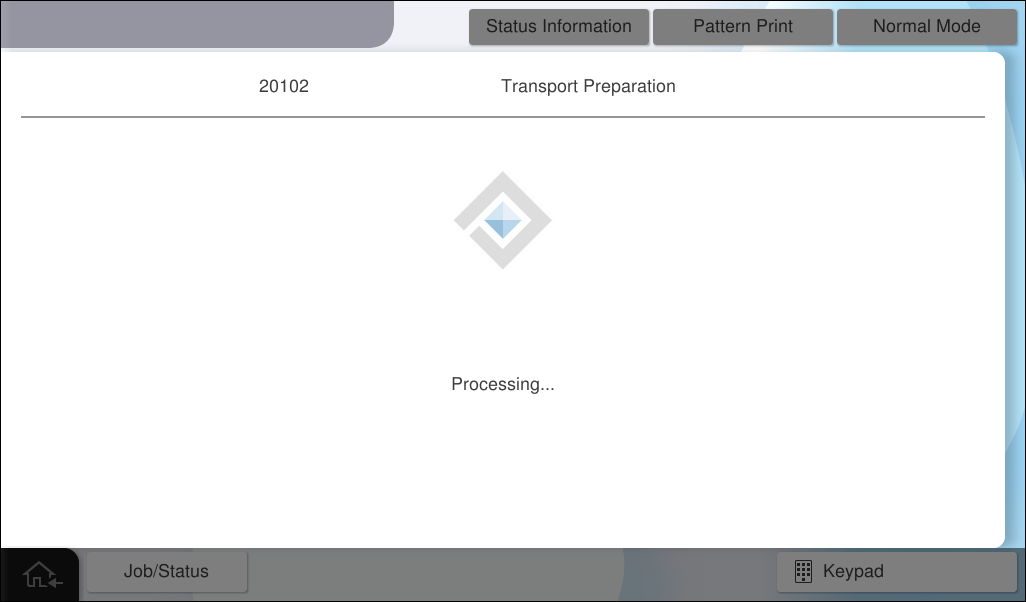
- When the following screen is displayed, turn off the power of the main unit.