
Saddle Unit Initial Adjustment Procedure
Three Folding Paper Size Setting
 Note / 補足 Note / 補足 |
|
Overview: Switch the tri-fold paper size (A4 or Letter).
- Start the installation mode.
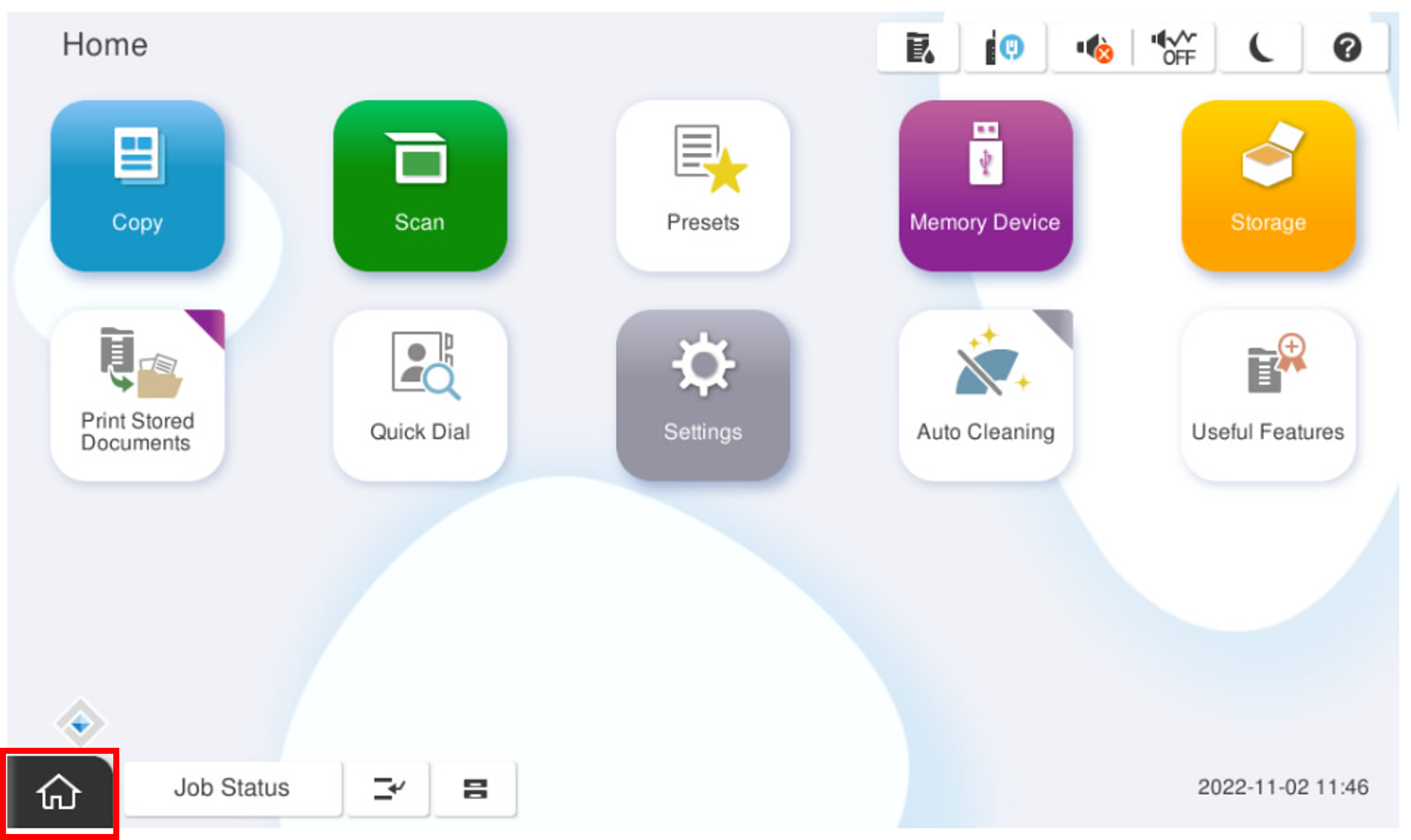
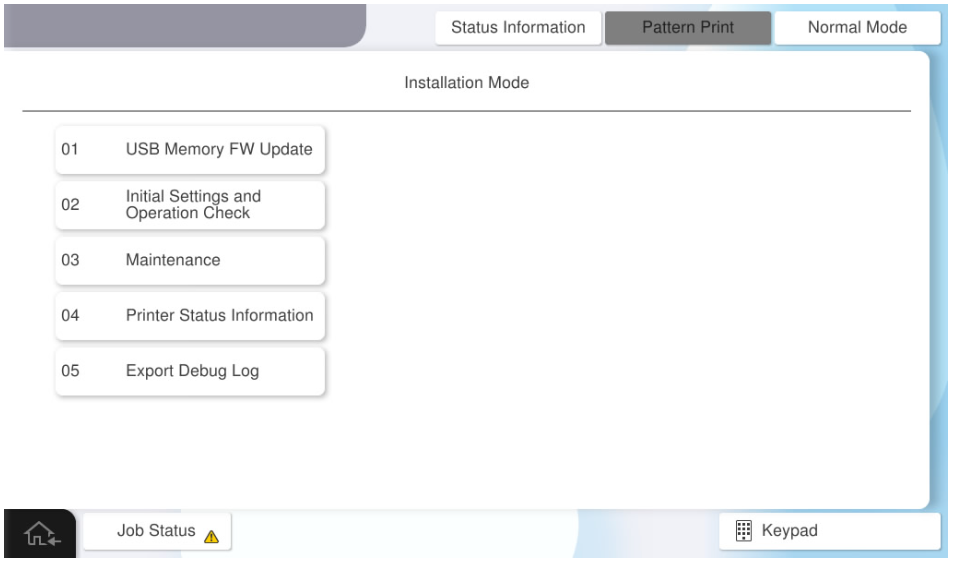
- Select [02 Initial Settings and Operation Check]
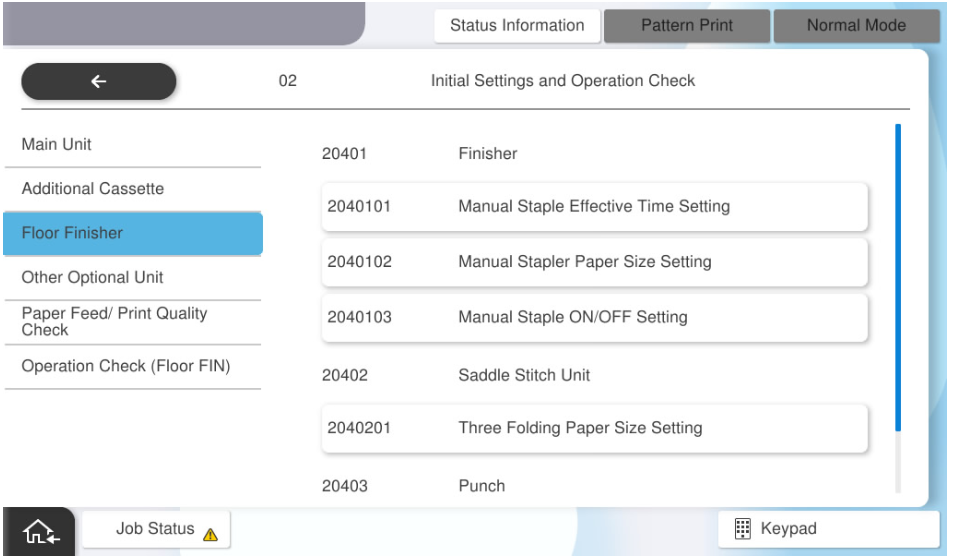
- Select [2040201 Three Folding Paper Size Setting].
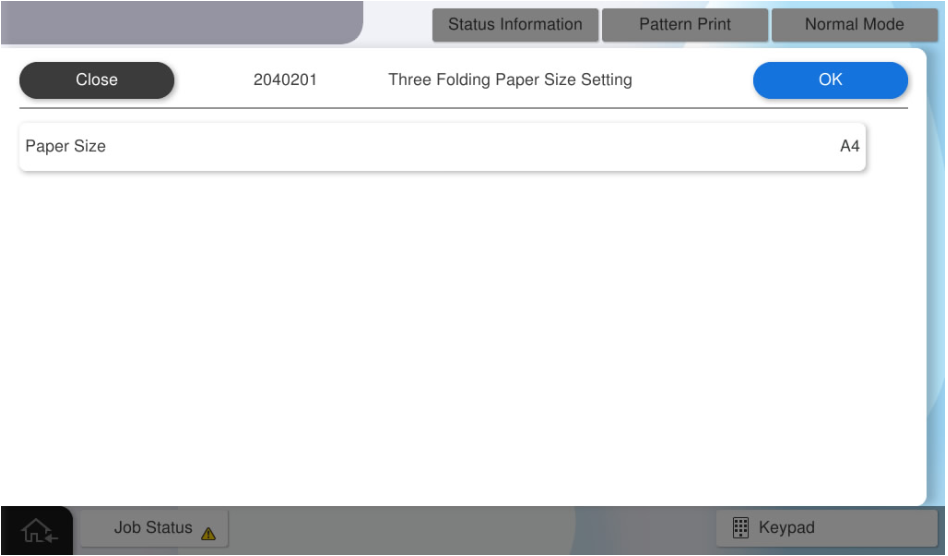
- Set the paper size, select the desired paper size (A4 or Letter), and press [OK].
Aligning the Paper Guides
- Raise the V2 cover (A).

- Remove the 2 screws and remove the cover (A).

 : 3x8DC/P
- Loosen the two screws of the paper guide (A).

- Align the top edge (A) of the paper guide with the size of the paper to be used, and tighten the two loosened screws to fix the paper guide.

- Install the cover (A), secure it with two screws, and lower the V2 cover (B).

- : 3x8DC/P
Operation Check
When installing the saddle unit, check the following operations.
- Saddle Stitch Stack
- Bi-fold Stack
- Tri-fold Stack
- Start the service support mode.
- Select [02 Installation Setting / Operation Check].
- Select the [Operation Check(Floor FIN)].

- Select [Saddle Stitch Stack].
- Select [Feed Tray].

- Select the paper tray to use.

- Select [Paper Size].

- Select the paper size to use.

- Select [Number of Sheets].

- Input the number of sheets to feed and press [OK] .

Press [Execute] and check the operation result.
| Note / 補足 |
Follow the same procedure to confirm the following operations, and confirm that they work correctly.
|