
Operation Check
After completing the installation and setting of the product, check the paper feeding and print quality.
Also, since the items to be implemented vary depending on the option configuration, check the corresponding items by referring to the following instructions.
Paper feed confirmation
- Start the installation mode.
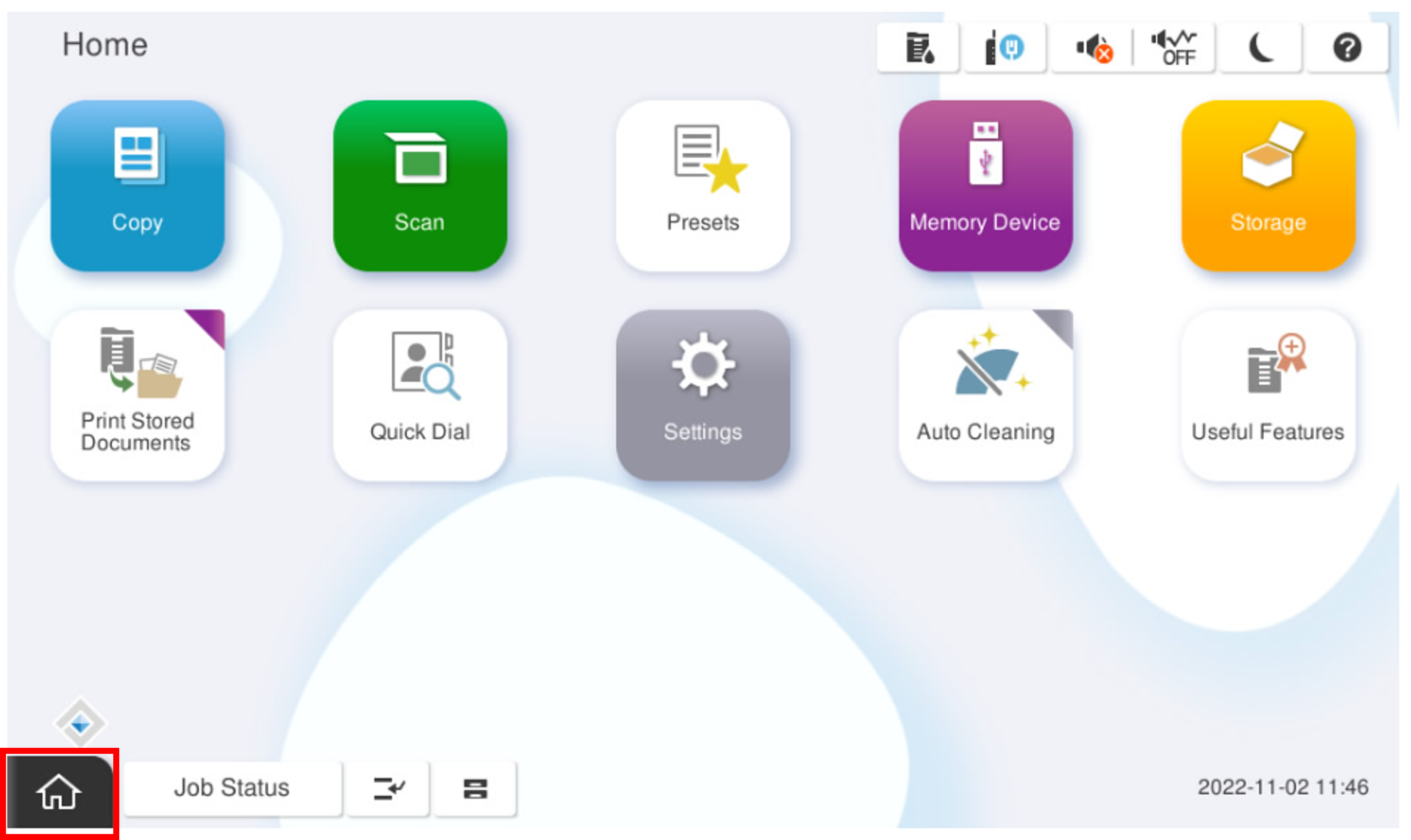
- Select [02 Installation Setting / Operation Check].

Select the [Paper Feed/ Print Quality Check] tab.
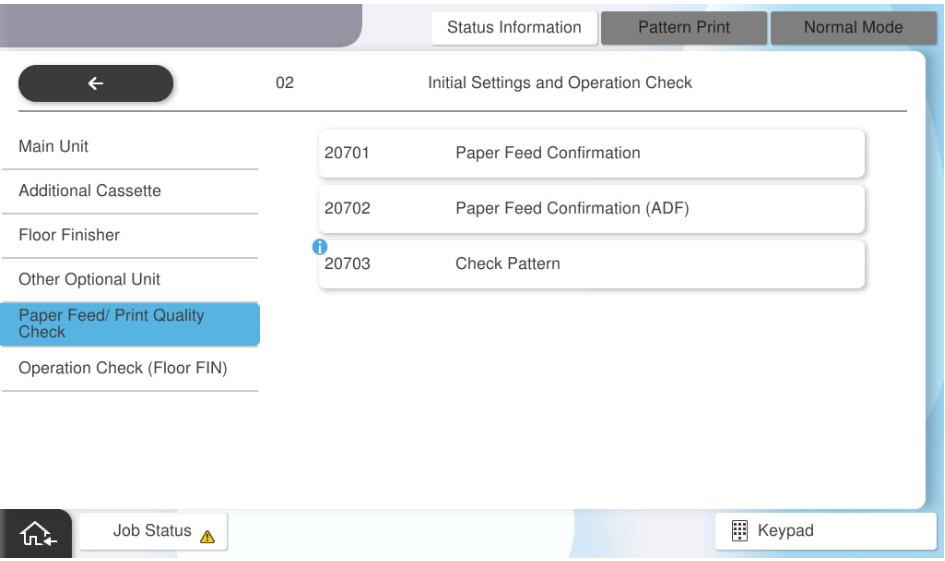
Select [Paper Feed Confirmation].
- From the menu below, select the setting for which you want to check the paper feeding, and press [Execute].
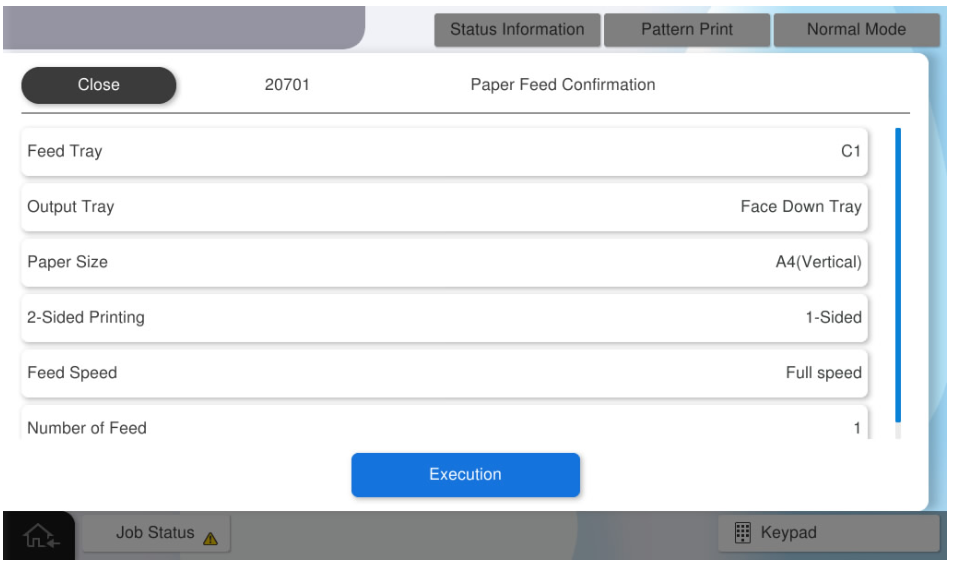
Menu Setting Items Feed Tray C1, C2, C3, C4, MP Tray, High Capacity Tray Output tray Face Down Tray, Inner tray Paper Size A4 (Vertical), Letter (Vertical), A3, Ledger 2-Sided setting 1-sided, 2-sided Feed Speed Full speed, low speed Number of Feed 1 to 100 Confirm the feed and press [Execution].
Select [Paper Feed Confirmation (ADF)].
Load paper in the ADF tray and select [Execute].
- After confirming the paper feed, select [End].
Print quality confirmation
 Check Point / チェックポイント Check Point / チェックポイント |
|
- Start the installation mode.
- Select [02 Installation Setting / Operation Check].
Select the [Paper Feed/ Print Quality Check] tab.
Select [20703 Check Pattern Print].
- From the menu below, select the setting for which you want to check the paper feeding, and press [Execute].
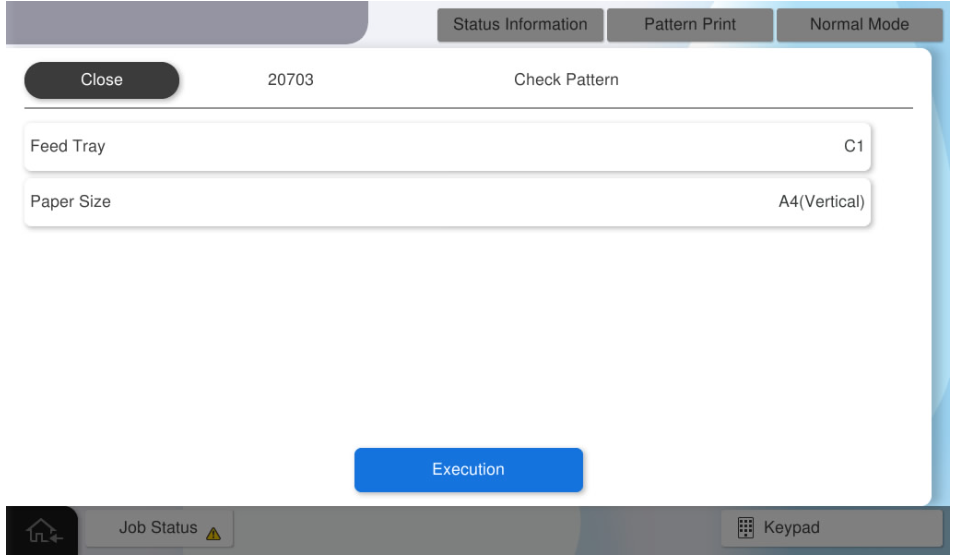
Menu Setting Items Feed Tray C1, C2, C3, C4, MP Tray, High Capacity Tray Paper Size A4 (Vertical), Letter (Vertical) - After confirming the check pattern, press [OK].